Our Best Sellers

Cards
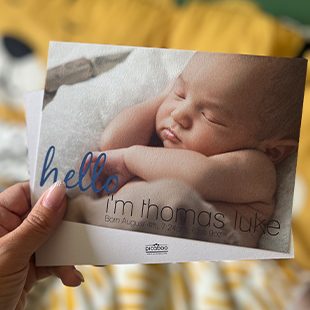
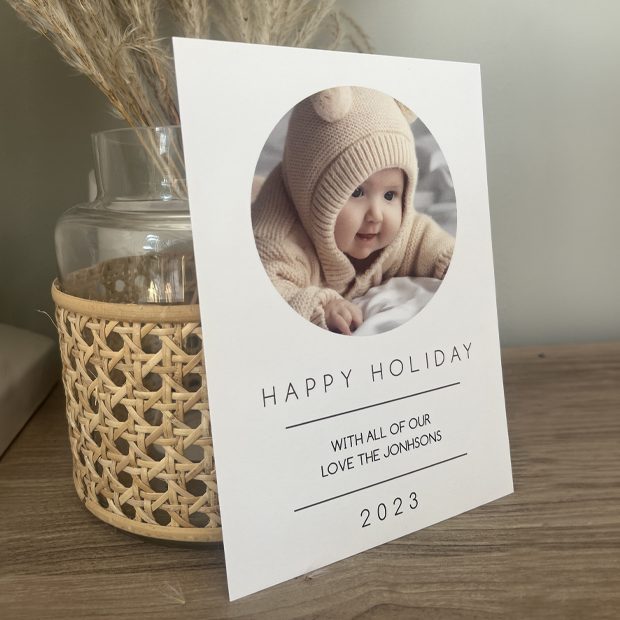
Packs Starting From $2.09

Layflat Photobooks
Starting at $69.99

Classic Photobooks
Starting at $24.99

Home Décor
Starting at $19.99

Seamless Layflat Photobooks
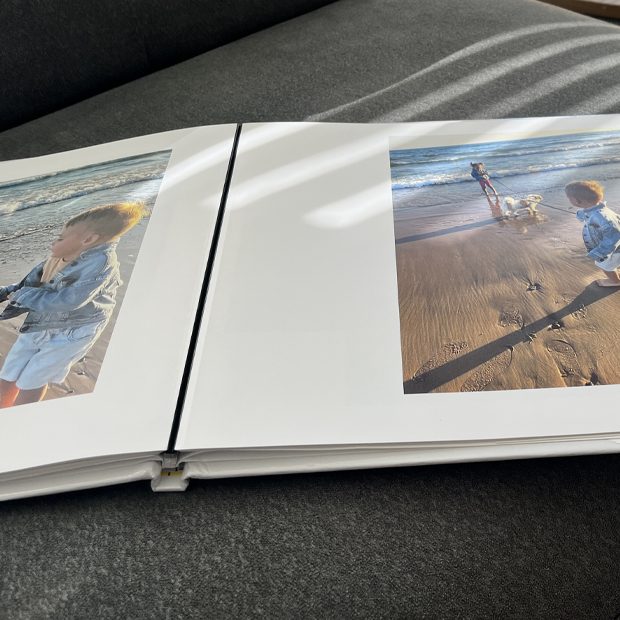
Our most premium book for your most precious moments. Display your photos in a photo book that will beautifully run the entire span of the pages. Our lay flat binding allows your photos to flow across the center of your book, giving you a completely uninterrupted photo experience.

Classic Photobooks
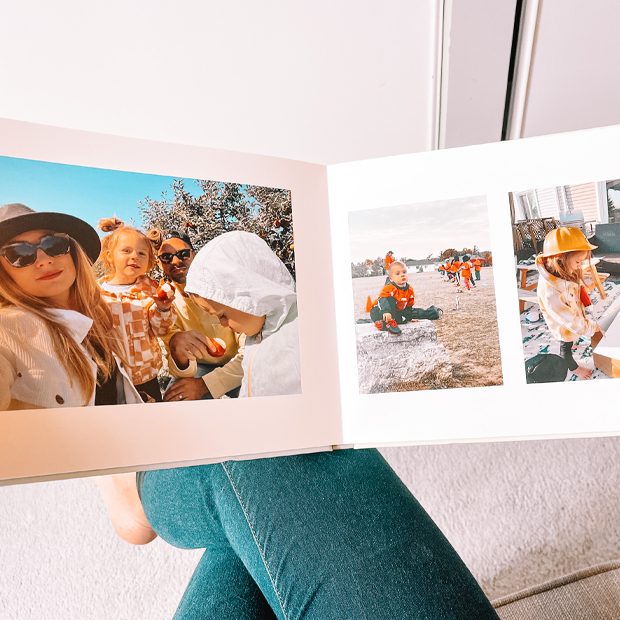
Capture every moment of your life with a personalized photo book. You can choose from a variety of styles and sizes to create a professional-looking keepsake book full of photos and text that you’ll treasure for years to come. Add custom details to make it your own!


Calendars
Make every day a trip down memory lane with our personalized calendars. Featuring your favorite photos and customizable dates, our calendars are the perfect way to relive cherished memories all year round. Start creating your unique calendar today and make every day special.

Photo Gifts
Create a thoughtful, customized gift for someone special with our photo gifts. Choose from mugs, coasters, puzzles, and more to capture the special moments you want to share together. Give them a personalized gift they’ll cherish for years to come.
View Collection →
Home Décor
Our home decor products include a variety of custom photo art and designs to liven up your space. Upload your photos and we’ll transform them into high-quality, gallery-inspired prints for you to enjoy every day. From metal prints to canvas wall art, we have a variety of styles to suit your taste.
View Collection →Create Anywhere.
Anytime
Picaboo gives you the tools and creative flexibility to make your custom photo books, calendars, cards and other products uniquely yours. Create your project on any device, no matter where you are. When you’re finished, your new creation will be shipped directly to you!